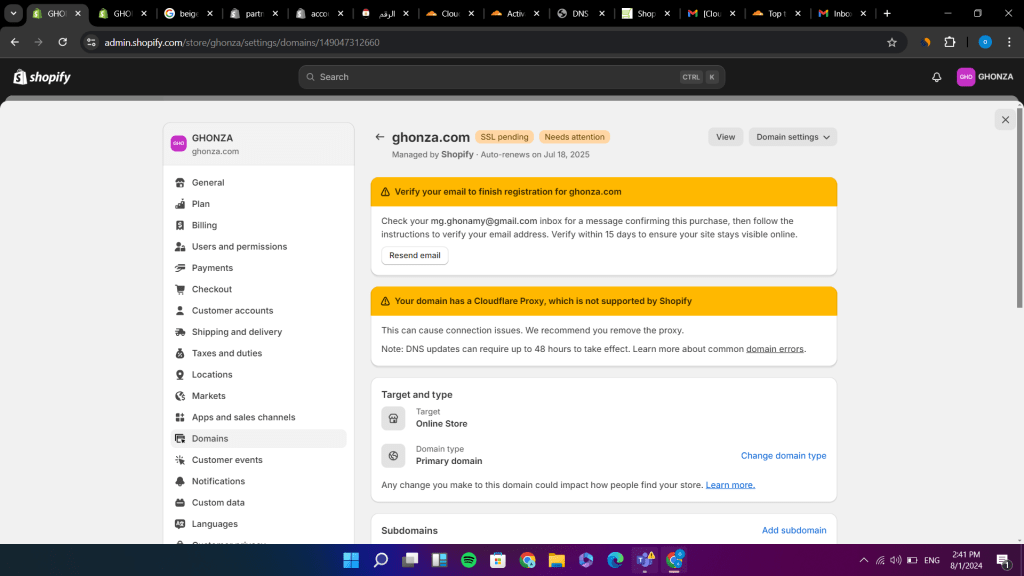
Shopify connection issues often stem from network problems or server downtime. To resolve the issue, start by clearing your cache and ensuring that your internet connection is stable
Shopify is a widely used e-commerce platform, but users sometimes face connection issues. These issues can disrupt business operations, leading to customer dissatisfaction and lost sales. Identifying the root cause is crucial for a quick resolution. Network problems or server downtime are common culprits.
Regularly updating your browser and Shopify apps can help prevent these issues. Always ensure your internet connection is stable. Clear your cache to resolve minor glitches. If problems persist, contact Shopify support for assistance. Keeping your system optimized minimizes disruptions. You can promptly maintain a seamless customer shopping experience by addressing these issues promptly.

Credit: community.cloudflare.com
Common Connection Problems
A lot of Shopify store owners encounter connection issues that can interfere with their business flow. By recognizing the typical causes of these problems, you can address them efficiently and minimize disruptions.
Server Downtime
Server downtime is a frequent issue. It occurs when Shopify’s servers are unavailable. This can happen due to maintenance or unexpected outages.
- Scheduled Maintenance: Shopify sometimes schedules maintenance. During this period, the servers are intentionally taken offline.
- Unexpected Outages: Occasionally, servers can go down unexpectedly. This can be due to technical issues or cyber-attacks.
To check if Shopify servers are down, visit the Shopify Status Page. This page shows real-time updates on server status.
Network issues can also cause connection problems. These issues can occur due to several reasons.
- Internet Connectivity: Your internet connection might be unstable. Check your router and ensure a stable connection.
- ISP Problems: Sometimes, your Internet Service Provider (ISP) may face issues. Contact your ISP if you suspect this.
- Firewall Settings: Firewalls can block Shopify connections. Ensure your firewall settings allow Shopify traffic.
To diagnose network problems, use tools like ping and traceroute. These tools help identify where the connection fails.
| Problem | Possible Solution |
|---|---|
| Server Downtime | Check the Shopify Status Page |
| Internet Connectivity | Restart Router |
| ISP Problems | Contact ISP |
| Firewall Settings | Adjust Firewall Settings |
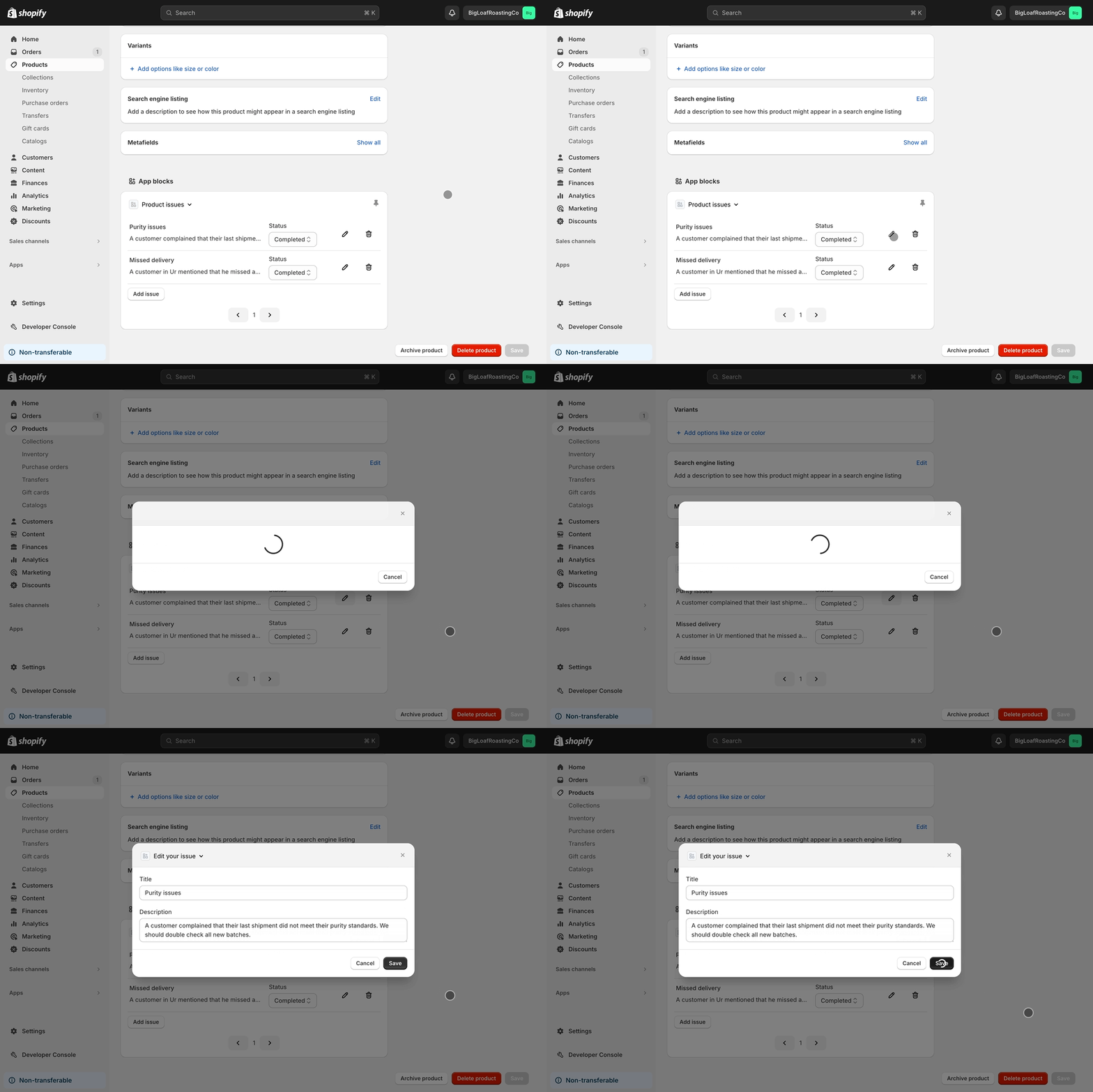
Credit: Shopify.dev
Diagnosing The Problem
Facing connection issues with Shopify can be frustrating. Knowing how to diagnose the problem is crucial. Let’s break down the steps to identify and resolve these issues effectively.
Error Messages
Error messages are the first clues to connection problems. Pay close attention to these messages.
- 404 Error: Page not found. Check the URL.
- 500 Error: Server issue. Contact Shopify support.
- 403 Error: Access denied. Verify your permissions.
Different errors mean different problems. Understanding them helps you pinpoint the issue faster.
Connectivity Tests
Conducting connectivity tests can help you diagnose network-related problems.
- Ping Test: Open your command prompt. Type
ping www.shopify.com. This checks your connection. - Traceroute: Type
tracert www.shopify.comin the command prompt. This shows the path your data takes. - Speed Test: Use online tools like Speedtest.net. Ensure your internet speed is adequate.
Perform these tests to identify where the connection breaks down.
Diagnosing the problem accurately is essential. It helps you fix the issue efficiently.
Internet Connectivity Solutions
Experiencing connectivity issues while using Shopify can be frustrating. Reliable internet is crucial for smooth online operations. Here are solutions to address common internet connectivity problems.
Router Issues
Your router plays a significant role in your internet connection. Router issues can disrupt your Shopify experience. Here are some steps to troubleshoot:
- Restart the Router: Turn it off, wait 10 seconds, then turn it back on.
- Check Cables: Ensure all cables are securely connected.
- Update Firmware: Check for any available router firmware updates.
- Reset Settings: Reset the router to factory settings if problems persist.
Isp Problems
Sometimes, the issue lies with your Internet Service Provider (ISP). ISP problems can cause slow or intermittent connections. Here’s what you can do:
- Contact ISP: Reach out to your ISP to report the issue.
- Check for Outages: Verify if there are any known outages in your area.
- Speed Test: Conduct an online speed test to check the connection speed.
- Upgrade Plan: Consider upgrading to a higher-speed internet plan if needed.
By addressing these common connectivity issues, you can ensure a smoother Shopify experience.
Credit: webmeridian.net
Shopify Server Status
Experiencing issues with your Shopify store can be frustrating. One common cause is server status problems. Knowing the current server status can save time and reduce stress. This section will guide you through checking Shopify’s server status and understanding updates.
Checking Status Page
First, visit the Shopify Status Page. This page provides real-time updates on server status. It shows if Shopify is experiencing any issues. The status page is easy to read and understand.
The status page includes:
- Overall Status: Shows if there are any major outages.
- Service Status: Indicates issues with specific services like Payments or Admin.
- Past Incidents: Lists previous issues and their resolutions.
Interpreting Updates
Updates on the status page help you understand current issues. Each update provides details about the problem and its impact. You will see timestamps showing when updates were posted.
Here is how to read updates:
| Field | Description |
|---|---|
| Incident | Describes the issue affecting Shopify services. |
| Investigating | Shopify is aware and looking into the problem. |
| Identified | The cause of the issue has been found. |
| Monitoring | Shopify has fixed the issue and is watching for further problems. |
| Resolved | The issue has been fixed completely. |
Understanding these terms helps you react appropriately to server issues. If an incident is “Investigating,” give Shopify time to find the cause. If the status is “Resolved,” you can resume normal activities.
Browser And Device Troubleshooting
Experiencing Shopify connection issues can be frustrating, especially when the problem lies with your browser or device. Proper troubleshooting can often resolve these issues quickly. This section will guide you through essential steps to fix common problems related to Shopify connection issues.
By following these steps, you can identify and address browser or device-related issues, ensuring a smoother experience with your Shopify store.
Clearing Cache
The browser cache stores temporary files to speed up browsing. Cached files can cause problems with Shopify.
- Open your browser settings.
- Find the option to clear browsing data.
- Select ‘Cached images and files’.
- Click ‘Clear data’.
Clearing the cache helps the site load the latest version and can fix many display and loading issues.
Device Compatibility
Shopify works best on certain devices and browsers. Ensure your device and browser are compatible.
| Browser | Version |
|---|---|
| Google Chrome | Latest |
| Mozilla Firefox | Latest |
| Safari | Latest |
Check if your device software is updated. Older versions may not support Shopify well. For mobile devices, use the Shopify mobile app for a better experience.
Following these steps can resolve many common issues. Ensure your browser and device are optimized for the best Shopify experience.
App And Plugin Conflicts
In the bustling world of e-commerce, Shopify stands tall. Yet, app and plugin conflicts can disrupt the smooth operation of your online store. These conflicts often lead to slow loading times, checkout failures, or complete site crashes. Understanding how to identify and resolve these conflicts is crucial.
Identifying Conflicts
Identifying Plugin Conflicts in Shopify
Identifying Shopify connection issues caused by plugin conflicts can be tricky, but a systematic approach can help. Start by noting any recent changes made to your Shopify store, such as new apps installed or updates to existing ones. Often, a sudden issue is linked to a recent change.
Use the following steps to identify potential conflicts:
- List all recently installed or updated apps.
- Check your store’s performance and note any issues related to Shopify connection issues.
- Disable apps one by one, starting with the most recent additions.
- **Observe if the Shopify connection issue resolves after each app is turned off.
This process helps in identifying the app causing the Shopify connection issue, enabling you to restore your store’s functionality efficiently.
Disabling Plugins
Disabling plugins can help pinpoint the conflicting app. Follow these steps:
- Go to your Shopify admin dashboard.
- Navigate to Apps and select the one you suspect.
- Click Disable to temporarily turn it off.
- Check your website to see if the issue persists.
If turning off the app resolves the issue, you have found the culprit. Consider contacting the app developer for support or looking for an alternative solution.
| Step | Action |
|---|---|
| 1 | List all recently installed or updated apps. |
| 2 | Check your site’s performance and note any issues. |
| 3 | Disable the apps one by one. |
| 4 | Observe if the issue resolves after each disable. |
Firewall And Security Settings
You might need to add specific ports if Shopify still doesn’t connect. Shopify uses certain ports to communicate. Open these ports in your firewall settings:
Contacting Shopify Support
Experiencing Shopify connection issues can be frustrating. Understanding how to contact Shopify support is crucial. This section covers various methods to get help.
Support Channels
Shopify offers multiple support channels. Each channel suits different needs. Here are the options:
- Email Support: Send detailed issues to support@shopify.com.
- Live Chat: Get instant help via Shopify’s live chat feature.
- Phone Support: Speak directly to a support representative.
- Community Forums: Engage with other Shopify users for advice.
Preparing Information for Shopify Connection Issues
Before contacting support regarding Shopify connection issues, gather essential information to help resolve the problem faster. Here’s what you need:
- Store URL: Provide your Shopify store URL.
- Error Messages: Note any specific error messages you encounter during the connection process.
- Steps Taken: List all the troubleshooting steps you’ve already tried.
- Browser Details: Mention your browser type and version.
Having this information ready can save time and ensure a smoother support experience when addressing Shopify connection issues.
Having this information ready can save time. It ensures a smoother support experience.
Frequently Asked Questions
How Do I Fix Shopify Connection Issues?
To fix Shopify connection issues, clear your browser cache and cookies. Ensure your internet connection is stable. Try using a different browser or device.
Why Can’t I Connect To Shopify?
You might not connect to Shopify due to server downtime or maintenance. Check Shopify’s status page for updates. Verify your internet connection.
Is Shopify Down Right Now?
Check Shopify’s status page to see if it is down. It provides real-time updates on any ongoing issues or maintenance
Can Browser Settings Affect Shopify Connection?
Yes, browser settings can affect Shopify connection. Turn off any browser extensions or plugins that might interfere. Clear cache and cookies regularly.
Conclusion
Resolving Shopify connection issues can enhance your store’s performance. Regular maintenance and updates are crucial. Utilize reliable internet connections and consult Shopify support when needed. Addressing these issues promptly ensures a seamless shopping experience for customers. Stay proactive and keep your online store running smoothly.