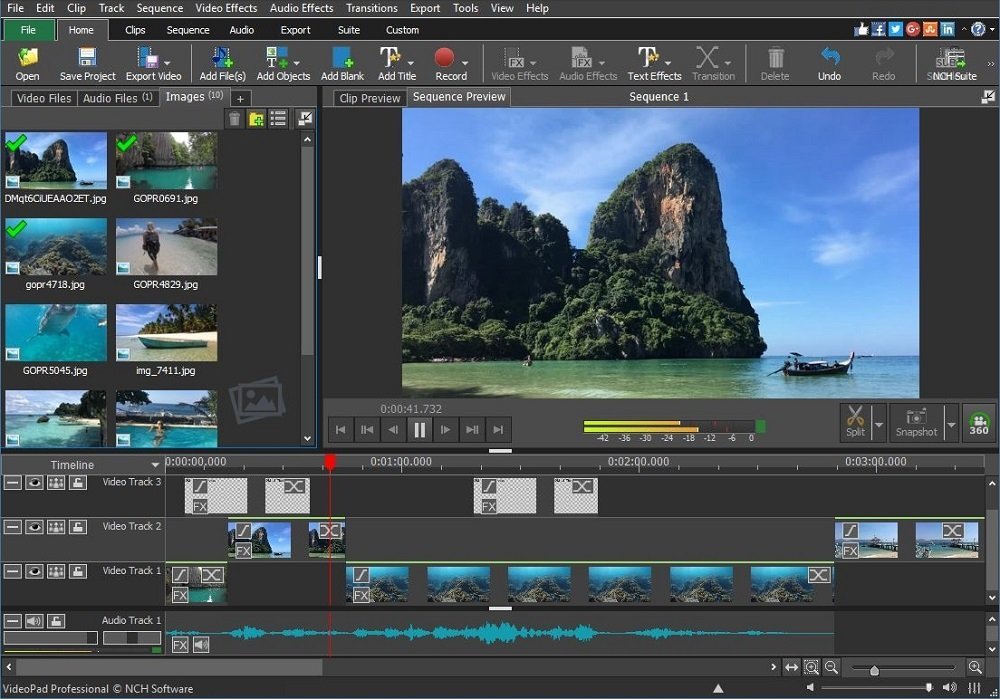
You can find high-quality free ai video editing software for pc without watermark by choosing open-source platforms like Shotcut or using the free tiers of browser-based tools that allow exports without branding. These options provide powerful tools for cutting, color grading, and adding effects without forcing you to pay a subscription or display a logo on your final video.
Best Free AI Video Editing Software
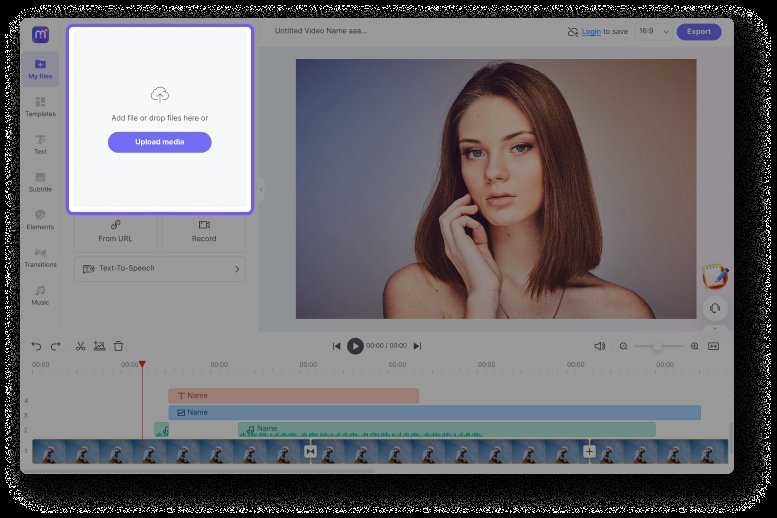
When searching for software that won’t leave a watermark, you should look for tools that prioritize community-driven development or offer clear “freemium” models. Most professional-grade software hides its best features behind a paywall, but the following options remain accessible for personal projects.
| Software | Best Feature | AI Capability |
|---|---|---|
| Shotcut | Total control | Automated scene detection |
| CapCut (PC) | Ease of use | Auto-captions & background removal |
| DaVinci Resolve | Color grading | Magic Mask & object tracking |
| OpenShot | Simple interface | Automated transitions |
Shotcut is an open-source program that doesn’t restrict your export settings, making it a favorite for those who want full control. While it lacks the advanced generative AI found in paid suites, it includes smart tools to help organize your clips automatically. DaVinci Resolve offers a free version that’s significantly more powerful than most paid alternatives, though it requires a capable computer to run smoothly.
How to Edit Without Watermarks
If you’ve chosen a tool, follow these steps to ensure your project stays clean and professional.
- Check export settings: Before you begin, open the “Export” or “Render” menu to ensure the format is set to a high-quality codec like H.264 or MP4.
- Verify the free tier: If you use a tool with a cloud component, confirm that the “Free” plan allows for 1080p resolution exports without a watermark before you spend hours editing.
- Use local processing: Stick to software installed directly on your PC rather than web-based editors to avoid server-side branding that often appears on free cloud accounts.
- Manage your timeline: Use the AI features like auto-captioning early in your process to save time, then manually check the text for errors before finalizing.
- Final render: Ensure you aren’t using “Pro” or “Premium” effects during your edit, as some programs will only add a watermark once you try to export a project containing those locked features.
Tip: Always save your project files in a separate folder from your media assets to prevent file path errors when you move your work between different computers.
Common Mistakes to Avoid
Many users struggle because they accidentally select premium assets while working in a free editor. Most software developers use a “freemium” model where the interface looks identical for everyone, but certain filters, music tracks, or transitions are marked with a small star or lock icon. Using these items will trigger a watermark during the export process.
To avoid this, filter your asset library by “Free” before you begin your project. If you see a watermark during a preview, check your timeline for any clip with a gold-colored border. These markers indicate a paid asset that must be replaced to remove the branding.
Another error is failing to update your graphics drivers. Even the best software will crash or export corrupted files if your PC’s hardware isn’t communicating correctly with the editing engine. If your export fails at exactly 99%, it’s almost always a driver timeout. Update your GPU software monthly to ensure smooth performance during heavy rendering tasks.
Related guides
Frequently Asked Questions
Does free software always include a watermark?
No, open-source software like Shotcut or OpenShot never includes watermarks, as these programs are funded by community donations rather than sales. Commercial software may include a watermark if you use premium-only features or if you’re using a trial version rather than the permanent free tier.
Is AI editing software safe to download?
It’s generally safe if you download the application directly from the developer’s official website or a trusted repository like GitHub. Avoid third-party “crack” sites or unofficial download links, as these often contain malicious software disguised as free editing tools.
Do I need a powerful PC for AI editing?
AI features like background removal or object tracking require significant processing power, so older computers may run slowly. If your PC struggles, try using a proxy workflow, which creates low-resolution copies of your footage to make the editing process faster before the final high-quality export.
Free video, in short
Start by downloading one open-source editor and testing it with a short, simple video clip to see if the interface fits your workflow. If the software feels too complex, switch to a browser-based tool that offers a clear, watermark-free export policy for standard resolution projects.