Installing Atlas VPN on a Firestick is simple and quick. This guide will show you how to do it step-by-step.
Atlas VPN is a popular choice for enhancing online privacy and accessing restricted content. If you use a Firestick, you’ll want to make sure your internet activity stays safe and private. But many users find it tricky to install VPNs on their devices.
Don’t worry! This guide will help you through the process. By following these steps, you can enjoy secure streaming on your Firestick in no time. Whether you’re a tech newbie or a seasoned user, these instructions will make the installation process easy and straightforward. Let’s dive in and get your Firestick protected with Atlas VPN!
Introduction To Atlas Vpn
Atlas VPN is a popular choice for online security and privacy. Many users prefer it for its easy installation and reliable performance. This VPN service helps protect your data and keeps your online activities private. Let’s dive deeper into Atlas VPN.
What Is Atlas Vpn?
Atlas VPN is a virtual private network service. It encrypts your internet connection and hides your IP address. This keeps your online activities secure from hackers and trackers. Atlas VPN offers multiple servers worldwide for better connection and speed.
Benefits Of Using Atlas Vpn
Atlas VPN offers strong encryption. This means your data is safe from prying eyes. It also prevents ISPs from tracking your browsing history. With Atlas VPN, you can access restricted content. This includes websites and streaming services blocked in your region.
Atlas VPN provides fast server speeds. This ensures smooth streaming and browsing. It also offers unlimited bandwidth. So, you can use the internet without worrying about data caps. Atlas VPN is easy to use. Its simple interface makes it perfect for beginners and advanced users alike.
Firestick Compatibility
Before installing Atlas VPN on your Firestick, ensure your device is compatible. Not all Firestick models support every app. Knowing your Firestick version helps avoid issues.
Supported Firestick Models
Atlas VPN works with most Firestick models. The supported models include:
- Fire TV Stick (2nd Gen)
- Fire TV Stick 4K
- Fire TV Stick Lite
- Fire TV Stick 4K Max
- Fire TV Cube
If you have one of these models, you can use Atlas VPN. Older models may not support all features.
Checking Your Firestick Version
To check your Firestick version, follow these steps:
- Go to the home screen of your Firestick.
- Navigate to “Settings.”
- Select “My Fire TV.”
- Click on “About.”
- Look for “Fire TV Stick” or “Fire TV Stick 4K” and check the version.
Knowing your version ensures compatibility with Atlas VPN. This can save time and prevent installation issues.
Preparing Your Firestick
Before you install Atlas VPN on your Firestick, you need to make some adjustments. These steps ensure your device is ready to handle the installation process. This section covers enabling apps from unknown sources and connecting to Wi-Fi. Follow these simple steps to prepare your Firestick.
Enabling Apps From Unknown Sources
First, you need to allow your Firestick to install apps from unknown sources. This setting lets you download apps that are not available on the Amazon Appstore.
Go to the home screen of your Firestick. Navigate to the “Settings” menu. Scroll to “My Fire TV” and select it. Choose “Developer Options” from the list. Find “Apps from Unknown Sources” and toggle it on. A warning message will appear. Confirm your selection by clicking “Turn On”.
Connecting To Wi-fi
Next, ensure your Firestick is connected to a stable Wi-Fi network. A strong connection is essential for a smooth installation process.
From the home screen, go to “Settings”. Select “Network” from the menu. Choose your Wi-Fi network from the list. Enter your Wi-Fi password and connect. Wait a few seconds for the connection to establish. You should see a confirmation message once connected.
With these steps completed, your Firestick is now ready for the Atlas VPN installation. Enjoy a secure and private streaming experience.
Credit: www.bleepingcomputer.com
Downloading The Atlas Vpn Apk
Downloading the Atlas VPN APK is a crucial step in installing Atlas VPN on your Firestick. This process allows you to sideload the app and enjoy its benefits. Follow these simple steps to download the APK file using the Downloader app.
Locating The Atlas Vpn Apk File
First, you need to locate the Atlas VPN APK file. Open a web browser on your computer or mobile device. Search for “Atlas VPN APK download” to find a reliable source. Make sure the website is trustworthy to avoid downloading malicious files.
Downloading Via Downloader App
Next, download the APK file using the Downloader app on your Firestick. If you don’t have the Downloader app, install it from the Amazon Appstore. Open the Downloader app once installed.
In the Downloader app, enter the URL of the Atlas VPN APK file. This URL is found from your earlier search. Click “Go” to start the download. The app will download the APK file to your Firestick.
Installing Atlas Vpn On Firestick
Installing Atlas VPN on Firestick can enhance your streaming experience. Firestick users can enjoy secure and unrestricted access to various content. Follow these steps to get Atlas VPN running on your Firestick.
Launching The Downloader App
First, enable apps from unknown sources on your Firestick. Go to Settings, then My Fire TV, followed by Developer Options. Turn on “Apps from Unknown Sources.” Now, you need the Downloader app to install Atlas VPN. Open the Firestick home screen, use the search bar, and type “Downloader.” Select the Downloader app from the search results and install it.
Installing The Apk File
Once the Downloader app is installed, open it. In the URL field, enter the download link for the Atlas VPN APK file. Press “Go” to start the download. After the download completes, the installation process begins. Follow the on-screen prompts to install the Atlas VPN app. Once installed, open the app and log in with your credentials. Now, you can connect to a VPN server and enjoy secure streaming on your Firestick.
Setting Up Atlas Vpn
Installing Atlas VPN on your Firestick is a great way to ensure your online activities are private and secure. It’s not difficult, and with our simple guide, you’ll be ready to browse safely in no time. Let’s break it down step by step.
Opening The Atlas Vpn App
First things first, you need to open the Atlas VPN app on your Firestick. Navigate to the Home screen, and from there, go to the Apps section. Look for the Atlas VPN app icon and click on it. If it’s your first time opening the app, it might take a few seconds to load, so be patient.
Logging Into Your Account
Once the app is open, you’ll be prompted to log into your account. If you already have an Atlas VPN account, simply enter your username and password. If you don’t have an account yet, you can sign up here. It’s quick and easy!
After logging in, you might be asked to verify your account through an email link. Just check your email and follow the instructions provided. Once verified, you’ll be logged in and ready to go.
And that’s it! You’re now set up with Atlas VPN on your Firestick. From here, you can explore the app’s features, connect to different servers, and enjoy a safer browsing experience. Happy streaming!
Configuring Vpn Settings
Configuring VPN settings on your Firestick is essential to ensure your online privacy and security. After installing Atlas VPN on your Firestick, you need to set it up correctly. This guide will help you configure the key settings, including selecting a server location and adjusting security features.
Selecting A Server Location
Open the Atlas VPN app on your Firestick. Navigate to the server list. Choose a server location that meets your needs. For streaming content, select a server in the country of the content you want. If you need better speed, choose a server close to your actual location. This ensures the best performance. Confirm your selection by clicking on the server name.
Adjusting Security Settings
Navigate to the settings menu within the Atlas VPN app. Find the security settings option. You can enable features like the Kill Switch. This feature blocks internet access if the VPN connection drops. It ensures you stay protected. You can also toggle other security options. Choose settings that best suit your needs. Confirm your selections before exiting the menu.
Testing The Vpn Connection
So, you’ve successfully installed Atlas VPN on your Firestick. Great job! But how do you know if it’s working correctly? Testing the VPN connection is crucial to ensure your online activities remain private and secure. In this section, we will walk you through the steps to verify your VPN connection and troubleshoot any issues that might arise.
Verifying Vpn Connection
First things first, let’s make sure your VPN is active and protecting your Firestick. Here’s a simple way to check:
- Open the Atlas VPN app on your Firestick.
- Connect to a server of your choice.
- Once connected, press the Home button on your Firestick remote to return to the main screen.
- Open a web browser or any app that displays your IP address.
- Visit a website like WhatIsMyIP.com to check your IP address.
If the IP address shown is different from your original one, congratulations! Your VPN is working perfectly.
Troubleshooting Connection Issues
Sometimes, things don’t go as planned. If your VPN connection isn’t working, don’t throw in the towel just yet. Here are a few tips to get you back on track:
- Restart Your Firestick: Often, a simple restart can resolve many issues. Unplug your Firestick, wait for a few seconds, and plug it back in.
- Reconnect to the VPN: Open the Atlas VPN app again and reconnect to a different server. Sometimes, switching servers can solve the problem.
- Check Your Internet Connection: Ensure that your Firestick is connected to the internet. Without a stable connection, the VPN won’t work.
- Update the App: Make sure you have the latest version of the Atlas VPN app. Updates often include bug fixes and performance improvements.
If none of these steps work, you might need to contact Atlas VPN’s customer support for further assistance. They can provide you with more specific troubleshooting steps.
By following these steps, you can ensure that your VPN connection is up and running, providing you with the privacy and security you deserve. Happy streaming!
Using Atlas Vpn On Firestick
If you’ve ever tried to stream your favorite shows on Firestick while traveling or living abroad, you’ve likely encountered the frustrating message: “This content is not available in your region.” Luckily, there’s a way to get around it. By using Atlas VPN on Firestick, you can not only access geo-restricted content but also stream it safely. Let’s dive into how you can make the most out of your Firestick with Atlas VPN.
Streaming Content Safely
When it comes to streaming, safety is paramount. Atlas VPN provides a secure connection that keeps your data private. But how does it work?
- Encryption: Atlas VPN encrypts your internet connection, ensuring that your online activities are hidden from prying eyes. This means that hackers, ISPs, or even the government can’t see what you’re doing online.
- No-logs policy: Atlas VPN does not keep logs of your online activities. This policy guarantees that your browsing history, downloads, and streaming habits are completely private.
Think of it as a shield that protects your identity while you enjoy your favorite movies and shows. It’s like having a superpower that makes you invisible to online threats. And who wouldn’t want that?
Accessing Geo-restricted Content
Now, let’s talk about the magic of accessing geo-restricted content. Have you ever wondered why some content is available in one country but not in another? It’s all about licensing agreements. But with Atlas VPN, you can bypass these restrictions easily.
- Connect to a server: Open Atlas VPN on your Firestick and connect to a server in the country where the content is available. For example, if you want to watch a show that’s only available in the US, connect to a US server.
- Open your streaming app: Once you’re connected, open the streaming app (like Netflix, Hulu, or Amazon Prime) on your Firestick. You’ll now have access to the content as if you were physically in that country.
It’s as simple as flipping a switch. Imagine being able to watch the latest episodes of your favorite series without waiting for them to be available in your region. Sounds dreamy, right?
In conclusion, using Atlas VPN on Firestick not only enhances your streaming experience but also ensures that your data remains secure. So, why wait? Give it a try and unlock a world of endless entertainment safely and effortlessly.

Credit: www.youtube.com
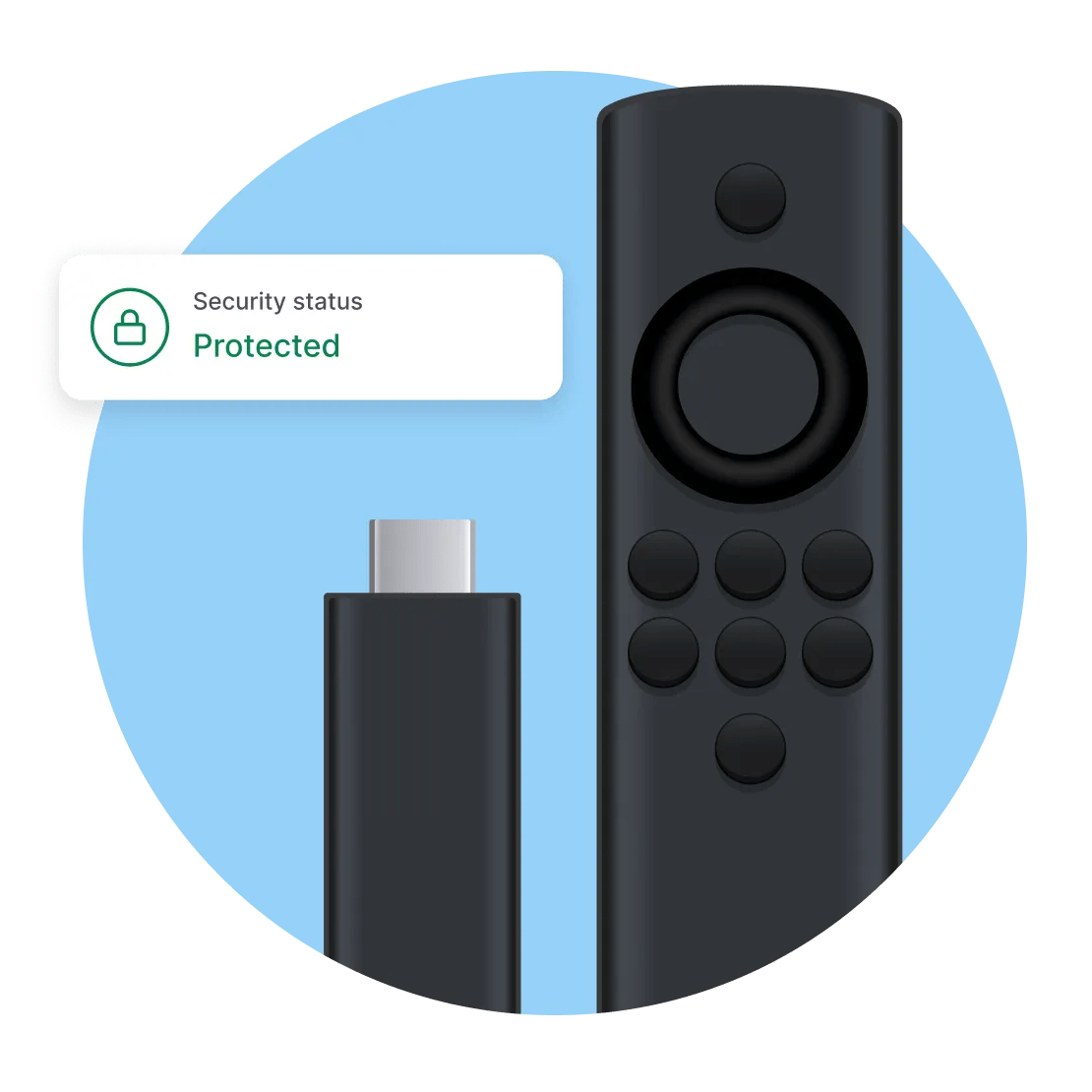
Credit: nordvpn.com
Frequently Asked Questions
How Do I Install A Vpn On My Firestick?
To install a VPN on your Firestick, download the VPN app from the Amazon Appstore, open it, log in, and connect.
Is Atlas Vpn Completely Free?
Atlas VPN offers both free and paid plans. The free version has limited features. Upgrade for more benefits.
How To Connect Atlas Vpn?
Download and install the Atlas VPN app. Open the app and sign in. Select a server and click “Connect. ” Enjoy secure browsing.
What Is The Best Vpn For Fire Stick?
The best VPN for Fire Stick is ExpressVPN. It offers fast speeds, strong security, and easy installation.
Conclusion
Installing Atlas VPN on Firestick is straightforward and quick. Just follow the steps above. You will enjoy safer streaming in no time. Atlas VPN is reliable and secure. It helps protect your privacy. Take control of your online activities. Enhance your streaming experience.
Avoid geo-restrictions easily. Make your Firestick work better for you. Now, you are ready to use Atlas VPN on your device. Enjoy watching your favorite shows securely. Stay safe and happy streaming!