Setting up a website is easier today than ever before, but protecting it and keeping data safe is still crucial. If you use Hostinger, you get access to free SSL certificates and automatic backups—two features that can help secure your site and make sure you never lose important files. Let’s see how these tools work, how to set them up, and why they matter.
Hostinger Free Ssl: Simple Setup, Strong Protection
SSL, or Secure Socket Layer, is a technology that encrypts the connection between your website and its visitors. With SSL, your site uses HTTPS instead of HTTP, making it safer and more trustworthy. Hostinger offers free SSL on most hosting plans, which can boost SEO and protect data.
Setting up SSL with Hostinger is straightforward:
- Log in to your Hostinger account.
- Go to the Dashboard of your site.
- Find the SSL section and click “Install.”
- Choose the domain and follow prompts.
SSL activation usually takes a few minutes. Your site will then show the padlock symbol in browsers, confirming it’s secure.
Here’s a quick comparison of SSL benefits with and without Hostinger’s free SSL:
| Feature | No SSL | Hostinger Free SSL |
|---|---|---|
| Data Encryption | No | Yes |
| SEO Boost | No | Yes |
| Browser Trust | No | Yes |
| Cost | Paid | Free |
Hostinger Automatic Backup: Easy Recovery
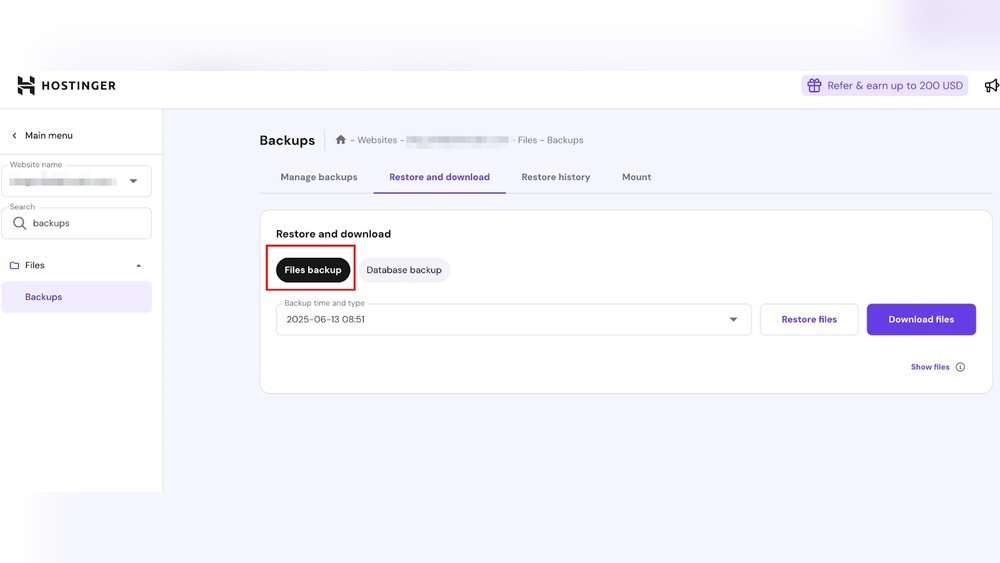
Backing up your website means you save a copy of your files and data. If something goes wrong—like a hack or accidental deletion—you can restore your site fast. Hostinger’s automatic backup feature helps you do this without manual work.
To set up automatic backups:
- Open your Hostinger dashboard.
- Navigate to the Backups section.
- Enable automatic backups and set the schedule (daily, weekly, or monthly).
Hostinger keeps backups for up to 7 days on most plans, so you can pick a restore point if needed. It’s smart to check backup settings regularly and download a copy for extra safety.
Below is a comparison of manual vs automatic backups:
| Type | Frequency | Effort | Risk |
|---|---|---|---|
| Manual | Irregular | High | Data loss |
| Automatic | Regular | Low | Minimal |
Credit: marjanservices.tech
Practical Tips And Insights
Many beginners forget to check SSL renewal or backup schedules. Hostinger’s free SSL is lifetime-valid as long as you use their hosting. However, always confirm the SSL is active after domain changes. For backups, test restoring at least once so you know the process.
A little-known fact: automatic backups can save not only website files but also databases, which is vital for WordPress users.
For more technical details, visit Hostinger’s official site: Hostinger Tutorials.
Frequently Asked Questions
What Is Ssl And Why Is It Important?
SSL encrypts data sent between your website and visitors. It makes your site safer, improves trust, and helps search engines rank you higher.
How Do I Know My Ssl Is Active?
Look for the padlock symbol in your browser’s address bar and check your site URL starts with https://.
How Often Are Backups Created With Hostinger?
Hostinger offers daily or weekly backups depending on your plan. You can adjust backup frequency in your dashboard.
Can I Restore My Website From A Backup Easily?
Yes, Hostinger lets you restore files and databases in just a few clicks from the Backups section.
Is Hostinger’s Free Ssl Valid For All Domains?
Hostinger’s free SSL works for most domains hosted with them, but check with their support for rare exceptions.

Credit: www.hostinger.com