If your Atlas VPN isn’t connecting, you might be frustrated and confused. There could be several reasons for this issue.
When your VPN doesn’t connect, it can be a real headache, especially if you’re trying to access restricted content or secure your data. Knowing why your Atlas VPN isn’t working can help you fix the problem quickly. In this post, we’ll explore common reasons for connection issues and provide simple solutions.
Whether it’s a network problem, a software glitch, or something else, we’ll guide you through troubleshooting steps. Understanding these factors can save you time and ensure your VPN works smoothly. Let’s dive into the possible causes and how to address them.
Common Connection Issues
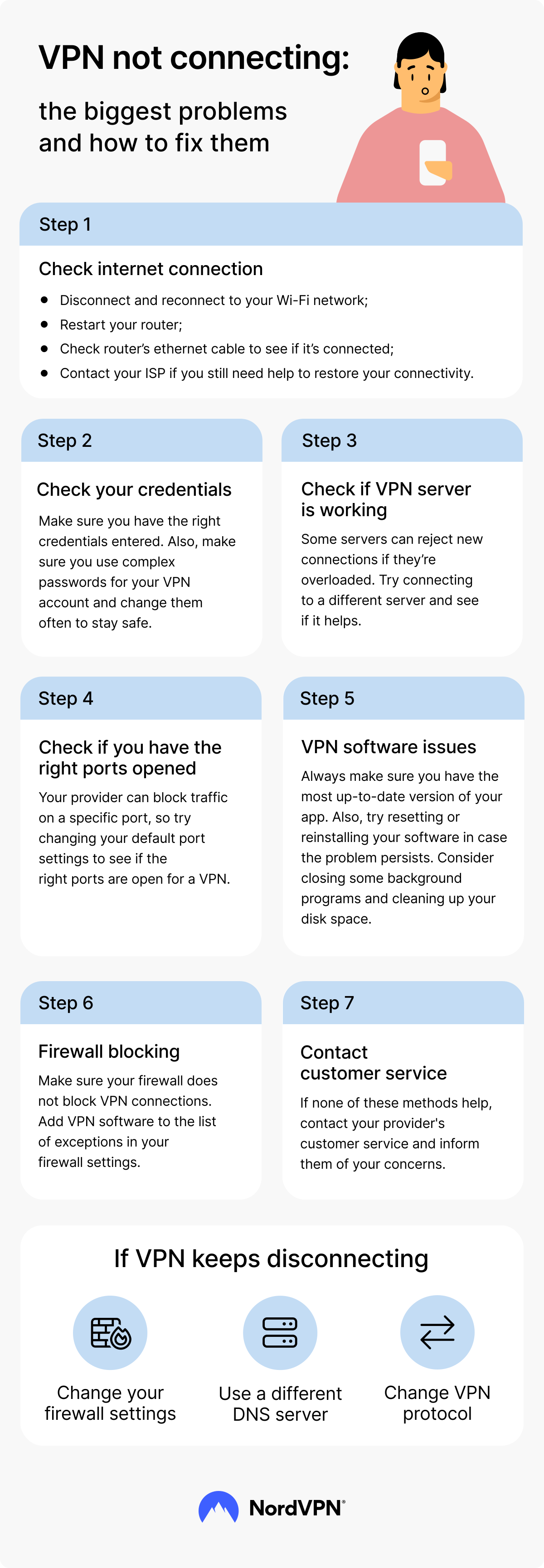
Experiencing issues with Atlas VPN can be frustrating. Understanding common connection issues can help resolve them quickly. Here are some frequent problems that users face.
Server Downtime
Atlas VPN servers might be down for maintenance. This downtime can prevent users from connecting. Server downtime can happen at any time. Scheduled maintenance ensures the servers run smoothly. Always check the VPN provider’s announcements. These can inform you about planned server downtime.
Network Congestion
Network congestion can affect VPN connections. High traffic can slow down the server. Many users connecting at once can cause this congestion. It’s like a highway during rush hour. Try switching to a less crowded server. This can improve your connection speed. Also, consider using the VPN during off-peak hours.
Check Your Internet Connection
Are you struggling to connect to your Atlas VPN? There could be many reasons behind this issue. One of the most common causes is a problem with your internet connection. Let’s dive into how you can check and fix this.
Verify Network Stability
First things first, you need to make sure your internet connection is stable. An unstable connection can cause VPN issues. Here’s how you can check:
- Open a web browser and try to visit a few websites. If the pages load quickly, your internet is likely stable.
- Use an online speed test tool. This will give you an idea of your internet speed and stability.
- If your internet seems slow or unstable, try moving closer to your Wi-Fi router.
Think of your internet connection like a road. If there are too many bumps (interruptions), your car (VPN) won’t drive smoothly.
Restart Your Router
Sometimes, the simplest solutions are the most effective. Restarting your router can often fix connection problems. Here’s how you can do it:
- Unplug the router from the power source.
- Wait for about 30 seconds. This gives the router time to reset.
- Plug the router back in and wait for it to restart fully.
It’s like giving your router a quick nap. A refreshed router can work wonders!
If after these steps your Atlas VPN still isn’t connecting, you might need to look into other solutions. But starting with your internet connection is a great first step.
Remember, a strong and stable internet connection is key to a smooth VPN experience. Happy browsing!
Update Atlas Vpn App
Having trouble with your Atlas VPN connection can be frustrating. One common issue users face is the app not connecting. But don’t worry; we have some straightforward solutions to get you back online. Let’s dive into one crucial step: updating your Atlas VPN app.
Check For Updates
Regular updates ensure your Atlas VPN app runs smoothly. Outdated versions might have bugs or compatibility issues. Here’s how you can check for updates:
- Open the Atlas VPN app on your device.
- Navigate to the settings or menu section.
- Look for an ‘Update’ or ‘Check for Updates’ option.
- If an update is available, follow the on-screen instructions to install it.
Updating your app can often resolve connectivity problems. Think of it as giving your app a much-needed tune-up!
Reinstall The App
Sometimes, simply updating is not enough. If the problem persists, reinstalling the app might do the trick. Here’s a step-by-step guide:
- Uninstall the Atlas VPN app from your device. This can usually be done by long-pressing the app icon and selecting ‘Uninstall’ or through your device’s settings.
- Restart your device. This helps clear any lingering issues.
- Go to your device’s app store (Google Play Store or Apple App Store).
- Search for ‘Atlas VPN’ and download the app again.
- Open the newly installed app and log in with your credentials.
Reinstalling the app can fix any corrupted files or settings that might be causing the issue. It’s like giving your Atlas VPN a fresh start!
By following these steps, you can often resolve connectivity issues with your Atlas VPN. Keep your app updated and don’t hesitate to reinstall if necessary. Happy browsing!
Server Selection
When your Atlas VPN isn’t connecting, one of the first things you should look into is Server Selection. Choosing the right server can often solve the issue and get you back online quickly. Let’s dive into some essential tips that can help you with server selection.
Choose Different Server
Sometimes, the server you are trying to connect to might be down or experiencing issues. In this case, selecting a different server can make a big difference. Here’s how you can do it:
- Open your Atlas VPN app.
- Navigate to the server list.
- Choose a different server from the list.
If you’re having trouble finding a working server, try selecting one closer to your physical location. This can often result in better connectivity and faster speeds.
Check Server Load
Another critical factor to consider is the server load. When too many users are connected to the same server, it can become overloaded and cause connection issues. To check the server load:
- Go to the server list in the Atlas VPN app.
- Look for servers with low or moderate load indicators.
- Connect to one of these servers for a more stable connection.
By choosing a server with a lower load, you can often improve your connection stability and speed. It’s a bit like choosing the shortest line at the grocery store – sometimes, it’s all about timing and picking the right option.
In conclusion, when you face issues with Atlas VPN not connecting, paying attention to server selection can often resolve the problem. Whether it’s choosing a different server or checking the server load, these steps can help you get back online quickly and securely. If you’re still having trouble, don’t hesitate to contact Atlas VPN support for further assistance.
Device Compatibility
Device compatibility is crucial for ensuring your Atlas VPN connects smoothly. Sometimes, the VPN may fail to connect if your device doesn’t meet the necessary requirements. Let’s explore some common issues related to device compatibility and how to address them.
Check System Requirements
First, verify that your device meets the system requirements for Atlas VPN. These requirements can vary for different operating systems. Ensure your device has the needed specifications. This includes sufficient RAM, storage space, and a compatible processor.
Visit the Atlas VPN website to find the specific requirements. Compare them with your device’s specifications. This step helps identify if your device can support the VPN software.
Update Operating System
Outdated operating systems may cause connection issues with Atlas VPN. Ensure your device runs on the latest version of its operating system. Updating your OS can resolve many compatibility issues.
To update, go to your device’s settings. Look for the software update section. Follow the prompts to install any available updates. This process can enhance overall performance and compatibility with Atlas VPN.
Regular updates keep your device secure and efficient. They also ensure compatibility with newer software versions, including VPNs.
Credit: nordvpn.com
Firewall And Antivirus Settings
So, you’ve been trying to connect to Atlas VPN, but it’s just not happening. Frustrating, right? Well, one of the common culprits could be your firewall and antivirus settings. These security features are designed to protect your device, but sometimes they can be a bit too protective. Let’s dive into how you can tweak these settings to get your Atlas VPN back up and running.
Disable Temporarily
Your firewall or antivirus might be blocking Atlas VPN, preventing it from establishing a connection. One quick way to check if this is the issue is to disable these protections temporarily. Here’s how you can do it:
- Windows Firewall:
- Open Control Panel.
- Click on System and Security.
- Select Windows Defender Firewall.
- Click Turn Windows Defender Firewall on or off.
- Choose Turn off Windows Defender Firewall.
- Antivirus Software:
- Open your antivirus software.
- Look for an option to disable it temporarily (usually found in the settings).
- Disable it for a short period (e.g., 10-15 minutes).
After disabling, try connecting to Atlas VPN again. If it works, you know the firewall or antivirus was the issue. Remember to turn them back on after testing!
Whitelist Atlas Vpn
Disabling your firewall or antivirus permanently isn’t a good idea. Instead, you can whitelist Atlas VPN. This means adding Atlas VPN to the list of safe programs. Here’s how you can do it:
- Windows Firewall:
- Open Control Panel.
- Click on System and Security.
- Select Windows Defender Firewall.
- Click Allow an app or feature through Windows Defender Firewall.
- Look for Atlas VPN in the list, check both Private and Public boxes.
- If it’s not listed, click Allow another app and add it manually.
- Antivirus Software:
- Open your antivirus software.
- Navigate to the settings or exceptions list.
- Add Atlas VPN to the list of allowed applications.
By whitelisting Atlas VPN, you tell your firewall and antivirus that it’s a safe program. This should help you connect without any hiccups.
Sometimes, these tech tweaks can feel like you’re navigating through a labyrinth. But with a bit of patience and persistence, you’ll be back online and secure in no time. If all else fails, remember that Atlas VPN’s support team is just a click away, ready to assist.
Vpn Configuration
Experiencing issues with your Atlas VPN not connecting can be quite frustrating. Fear not, though! Often, the root of the problem lies in the VPN configuration. By making sure your settings are correct, you can resolve many common connection issues. Let’s dive into some essential steps you can take to get your VPN up and running smoothly again.
Check Vpn Protocol
One of the first things you should check is the VPN protocol. VPN protocols are the methods through which your data is routed and encrypted. Atlas VPN offers several protocols, and the one you choose can significantly impact your connection.
Here’s a simple way to check and change your VPN protocol:
- Open your Atlas VPN application.
- Navigate to the settings menu.
- Look for the “Protocol” section.
- Try switching to a different protocol such as OpenVPN, IKEv2, or WireGuard.
Sometimes, the default protocol may not work well with your network. By switching to another one, you might find a more stable connection. If you’re unsure which protocol to use, OpenVPN is usually a good starting point.
Reset Vpn Settings
Another quick fix that often works is resetting your VPN settings. This action will revert any changes you might have made to the default settings and can resolve conflicts causing the connection issues.
Here’s how you can reset your VPN settings:
- Open the Atlas VPN app on your device.
- Go to the settings menu.
- Find the option that says “Reset to default” or “Restore default settings”.
- Confirm the reset and restart the application.
Anecdotally, I had a similar issue last month and was pulling my hair out trying to figure it out. After resetting the settings, my VPN connected without a hitch. Sometimes, the simplest solutions are the most effective!
If resetting the settings doesn’t work, it might be time to uninstall and then reinstall the application. This action ensures you have the latest version and can fix bugs that might be causing connection issues.
By following these steps, you should be well on your way to resolving your Atlas VPN connection issues. Remember, patience is key, and sometimes a bit of troubleshooting goes a long way.

Credit: www.comparitech.com
Contact Support
Atlas VPN not connecting? Contact support for quick help. Experts can resolve network issues and get you back online swiftly.
Is your Atlas VPN not connecting? Contacting support is a great step. The support team can help diagnose and fix the issue. They have the tools and knowledge to assist you. Here are two ways to contact support.Submit A Ticket
Submitting a ticket is simple. Visit the Atlas VPN website. Look for the support section. Fill out the form with your issue. Include details like your device and error messages. Submit the ticket. Wait for the support team to respond. They usually reply within 24 hours.Use Live Chat
Live chat offers quick help. Go to the Atlas VPN website. Click on the live chat option. A support agent will join the chat. Explain your problem. The agent will guide you through the solution. Live chat is fast and convenient. It works best for urgent issues. “`
Credit: nordvpn.com
Frequently Asked Questions
Why Is Atlas Vpn Not Connecting?
Atlas VPN may not connect due to network issues, outdated app versions, or incorrect settings. Restart the app, update it, or check your internet connection.
What To Do If Vpn Is Not Connecting?
Restart your device and VPN app. Check your internet connection. Update the VPN app. Try a different server. Contact support.
What Is Happening To Atlas Vpn?
Atlas VPN is continuing to grow, offering improved security features and expanding its server network. Users can expect better performance and enhanced privacy protection.
Why Is My Always On Vpn Not Connecting?
Your VPN might not connect due to network issues, outdated software, or incorrect settings. Check your internet connection and update the VPN software. Verify that your login credentials and VPN configuration are correct.
Conclusion
Having Atlas VPN connection issues can be frustrating. Follow the steps mentioned to troubleshoot. Check your internet connection and VPN settings. Restart your device and try reconnecting. Contact customer support if problems persist. Keep your VPN updated for smooth operation.
Atlas VPN aims to provide secure, private browsing. Fixing these issues ensures a better experience. Stay patient and proactive in resolving connectivity problems. Enjoy the benefits of a reliable VPN connection.